Labani Mondal

Best Free & Paid Graphic Design Tools in 2025

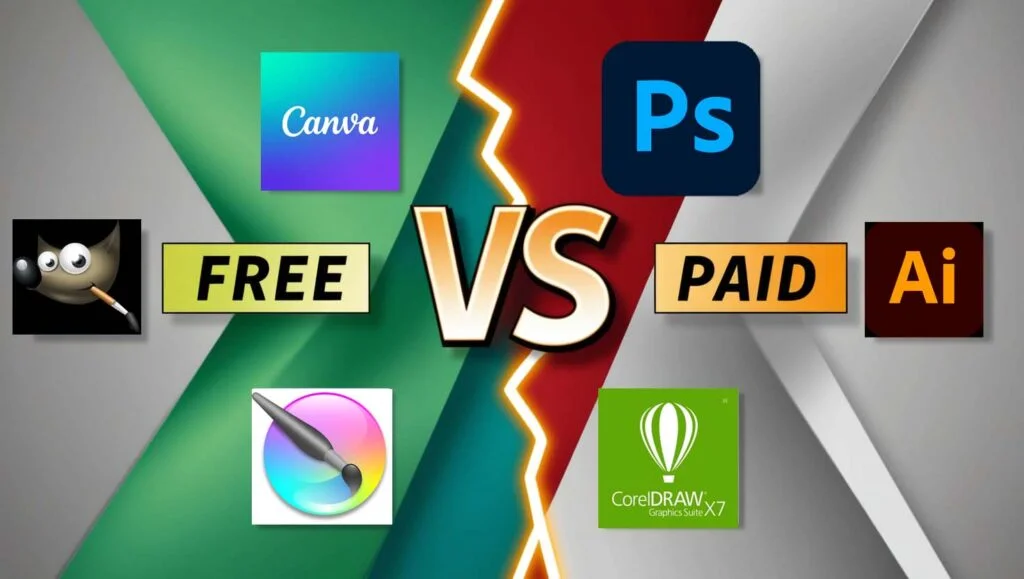
Top Free & Paid Graphic Design Software in 2025 Graphic design is important for branding, marketing, and visual storytelling. Whether you are a professional designer, business owner, or enthusiast, the right tools can make a big difference. In 2025, there are many free and paid graphic design tools to choose from, each serving different purposes and skill levels. Here’s a summary of the best graphic design tools you should use. Best Free Graphic Design Tools 1. Canva Canva remains a top pick for beginners and experts. It has an easy drag-and-drop interface and provides thousands of pre-made templates for social media, presentations, posters, and so on. The free account provides an enormous library of design items, but advanced tools need a paid subscription. 2. GIMP (GNU Image Manipulation Program) GIMP is an impressive open-source alternative to Photoshop. It has sophisticated image editing capabilities, such as layers, masks, and effects filters. Though it’s more difficult to learn, it’s a great free software for working professionals who need a Photoshop substitute. 3. Figma Figma is an online design application that is used mainly for UI/UX design. It has real-time collaboration, making it a great option for teams. The free plan has limited file storage but is good enough for small projects and new users. 4. Inkscape If vector graphics are your specialty, then Inkscape is a great free option. It’s perfect for designing logos, icons, and illustrations with high-end features such as path operations, text tools, and node editing. 5. Pixlr Pixlr is an online photo editor that offers AI-driven tools for fast and simple edits. It’s easy to use, so it’s perfect for beginners who want to improve photos without complicated software. Best Paid Graphic Design Tools 1. Adobe Photoshop A market leader, Adobe Photoshop continues to be the choice of expert designers. Photoshop features sophisticated tools such as AI-driven selections, generative fill, and 3D editing. Photoshop can be accessed through an Adobe Creative Cloud subscription, beginning at approximately $20.99 per month. 2. Adobe Illustrator For vector design, the best option is Adobe Illustrator. It’s popular for logo creation, illustrations, and typography. With smooth integration with other Adobe software, it’s a professional must-have, offered through a subscription. 3. Affinity Designer Affinity Designer is a great alternative to Adobe Illustrator with a one-time purchase option rather than a subscription. It features professional-grade vector editing capabilities, which make it an affordable yet powerful option for designers seeking a capable but personalized solution. 4. CorelDRAW CorelDRAW is another capable vector graphic design software employed by branding, marketing, and illustration professionals. It features AI tools and a user-friendly interface but at a premium price. 5. Sketch Sketch is a widely used UI/UX design tool known for its simplicity and efficiency. It’s primarily available for macOS and is subscription-based, making it a great choice for designers working on web and mobile interfaces. Final Thoughts Selecting the most appropriate graphic design software is based on your requirements, budget, and level of expertise. Canva and GIMP are ideal for newbies as they are free, while Adobe Photoshop or Illustrator might be more suitable for experts due to their professional features. Irrespective of whether you choose a free or paid software, taking the time to learn the application can significantly improve your designing skills. What’s your go-to graphic design software in 2025? Let us know in the comments!

Best Free & Paid Graphic Design Tools in 2025 Read More »
Adobe Photoshop vs. Canva: Which One Should You Use?

Of Graphic Design programs, two of the most commonly used are Adobe Photoshop and Canva. Each has its own special features suited to different kinds of users. But what should you use? In this article, we will compare Photoshop and Canva to guide you in choosing. Ease of Use Canva is user-friendly for beginners and non-designers. Its drag-and-drop feature, editable templates, and large repository of stock photos, fonts, and elements allow anyone to design beautifully in a matter of minutes. Photoshop has a more advanced learning curve. It provides powerful image editing capabilities, advanced typography, and digital art, making it perfect for professionals. Features and Capabilities Photoshop is a professional photo manipulation, retouching, and intricate graphic design software. It features layer-based editing, sophisticated selection tools, and AI-driven improvements. Canva, though not as sophisticated, features pre-made templates, easy-to-use components, and collaboration capabilities, ideal for social media images, presentations, and promotional materials. Customization and Flexibility If you want total creative control of your designs, Photoshop is the best bet. It enables users to design highly personalized graphics from the ground up. Canva, on the other hand, prioritizes ease of use, with pre-made templates and minimal customization. But it’s perfect if you want professionally looking designs without wasting hours on them. Best For Photoshop: Professional graphic designers, photographers, and digital artists requiring sophisticated editing capabilities. Canva: Small business owners, social media marketers, and newbies seeking simple-to-create designs without a high learning curve. Final Verdict If you require precision, control, and sophisticated design capabilities, Photoshop would be a better option. However, if you like convenience, affordability, and easy-to-use design tools, Canva is an excellent alternative. Your decision is ultimately based on the requirements of your design and your level of expertise. Which one are you inclined to use? Let us know in the comments!  

Adobe Photoshop vs. Canva: Which One Should You Use? Read More »
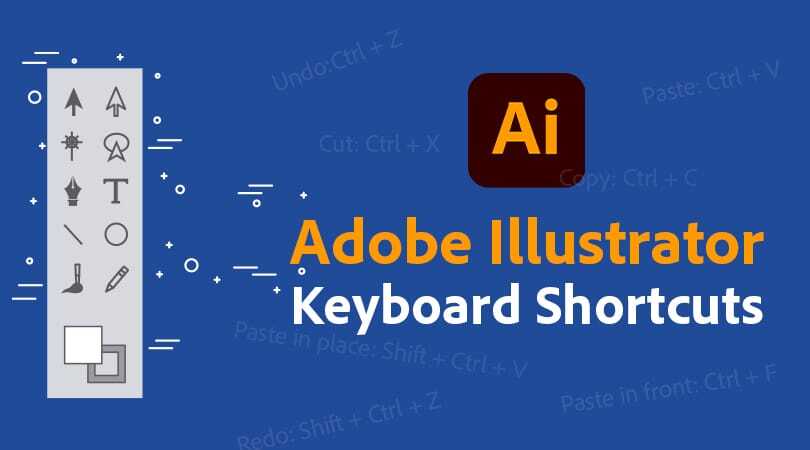
Must-Know Adobe Illustrator Shortcuts for All Designers

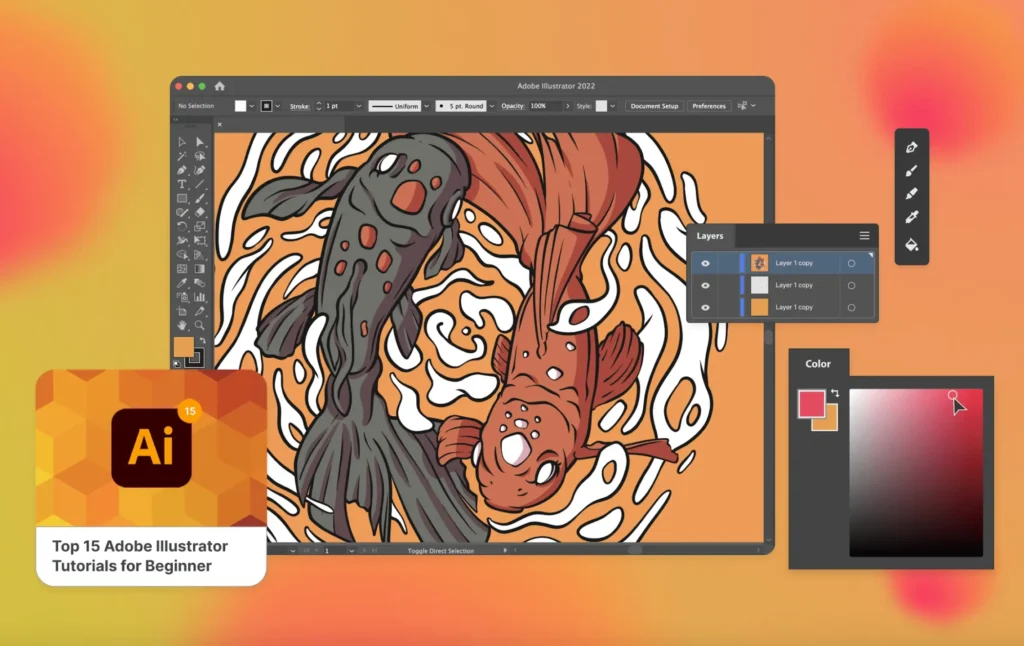
Must-Know Adobe Illustrator Shortcuts for All Designers: Adobe Illustrator is a mighty design tool with unlimited potential for crafting amazing vector graphics. Still, it’s not all about mastering the tools; it’s also about utilizing them more quickly. Shortcuts can significantly streamline your workflow, allowing you to work smarter, rather than harder. Below are some must-know Adobe Illustrator shortcuts for all designers. 1. Selection & Navigation Shortcuts – V – Selection Tool: Rapidly select and move objects. – A – Direct Selection Tool: Select and edit anchor points and paths. – Spacebar – Hand Tool: Pan around your canvas with ease. – Ctrl + Spacebar (Cmd + Spacebar on Mac) – Zoom In: Rapidly zoom in on details. – Alt + Spacebar (Option + Spacebar on Mac) – Zoom Out: Zoom out to view the larger picture. 2. Shape & Object Manipulation – M – Rectangle Tool: Create rectangles and squares instantly. – L – Ellipse Tool: Draw circles and ovals with ease. – Shift + Drag – Constrain Proportions: Keep the aspect ratio of shapes when resizing. – Alt + Drag (Option + Drag on Mac) – Duplicate Object: Duplicate an object in a snap. – Ctrl + D (Cmd + D on Mac) – Transform Again: Redo the previous transformation, ideal for creating patterns. 3. Text & Type Tool Shortcuts – T – Type Tool: Click and type anywhere on the canvas. – Ctrl + Shift + O (Cmd + Shift + O on Mac) – Create Outlines: Turn text into editable vector shapes. – Ctrl + Shift + B (Cmd + Shift + B on Mac) – Hide/Show Bounding Box: Toggle bounding box visibility for improved text alignment. – Ctrl + Shift + >/< (Cmd + Shift + >/< on Mac) – Increase/Decrease Font Size: Resize text without going through the menu. 4. Layer & Grouping Commands – *Ctrl + G (Cmd + G on Mac)* – Group Objects: Group multiple objects together. – Ctrl + Shift + G (Cmd + Shift + G on Mac) – Ungroup Objects: Break grouped objects apart. – Ctrl + [ or ] (Cmd + [ or ] on Mac) – Send Backward/Bring Forward: Rearrange the layering order of objects. – Ctrl + Shift + [ or ] (Cmd + Shift + [ or ] on Mac) – Send to Back/Bring to Front: Put objects straight on top or at the bottom layer. 5. Pathfinder & Alignment Shortcuts – Shift + Ctrl + F9 (Shift + Cmd + F9 on Mac) – Open Pathfinder Panel: Quickly open path merging tools. – Shift + Ctrl + ] (Shift + Cmd + ] on Mac) – Align to Artboard: Center objects on the canvas. Ctrl + Alt + Shift + J (Cmd + Option + Shift + J on Mac) – Justify Paragraph Text: Maintain text alignment consistency. Boost Your Efficiency Memorizing these shortcuts may take time, but once they become second nature, your design process will be faster and smoother. Try incorporating a few at a time into your workflow, and soon, you’ll be designing with speed and precision. Happy designing!

Must-Know Adobe Illustrator Shortcuts for All Designers Read More »
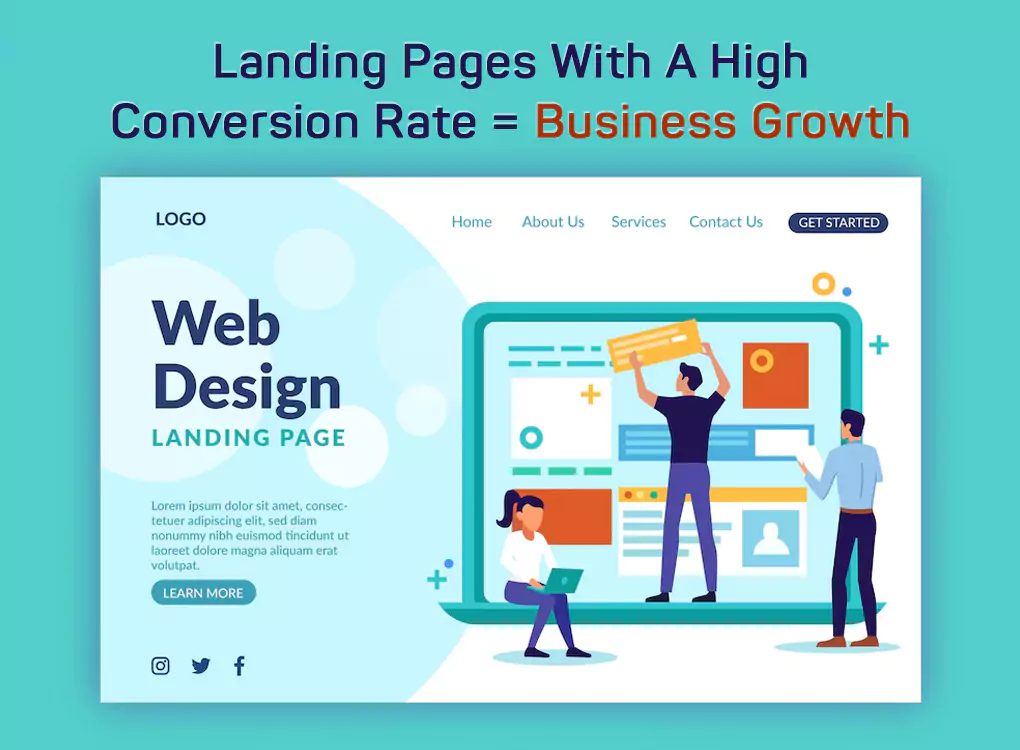
How to Create a High-Converting Landing Page

A landing page is the most critical aspect of any online marketing campaign. It acts as the initial interaction point between your brand and target customers. An effective landing page can drastically improve conversion rates; be it a lead generation page, selling something, or pitching a service. In this post, we’re going to talk about key factors that help create a high-converting landing page. 1. Define Your Goal Clearly Before you design your landing page, define the primary objective of it. Are you looking for newsletter subscribers, product purchases, or event registrations? You can properly frame the page and keep unnecessary elements away when you have a clear goal. 2. Craft a Compelling Headline Your headline is where the visitor first sees you, so it needs to be attention-grabbing at a glance. Keep it direct, concise, and benefit-driven. Your headline tells the reader the value of your offer in just a few words. 3. Use Engaging Visuals High-quality images or videos combined with graphic designs can make your landing page very appealing to the eye and drive your message home. Apply images that are relevant and follow the content so as not to distract from it. 4. Write Persuasive Copy The body text must be engaging and centered on the needs of the visitor. Talk about the benefits of your offer rather than the features. Use simple persuasive language and short paragraphs for easy reading. 5. Include a Strong Call-to-Action (CTA) Your CTA button is what makes the difference in conversions. Use action words such as “Get Started,” “Download Now,” or “Claim Your Free Trial.” A CTA needs to stand out on the page using a contrasting color and at an eye-level position. 6. Build Trust with Social Proof Adding testimonials, reviews, case studies, or trust badges can enhance credibility. Social proof reassures visitors that others have benefited from your product or service, increasing their likelihood of taking action. 7. Optimize for Mobile With a significant percentage of users browsing on mobile devices, your landing page must be fully responsive. Ensure that all elements adjust properly on smaller screens and that the CTA remains easily accessible. 8. Minimize Distractions A clean and focused landing page should be high converting. Eliminate unnecessary navigation menus and extra links that might pull visitors away from your CTA. The less distraction, the higher the chance of conversion. 9. Use A/B Testing No landing page is perfect at first. A/B testing different elements, such as headlines, CTA buttons, colors, or images, can help you determine what works best. Continuous optimization based on data insights will improve conversion rates over time. 10. Optimize Loading Speed Slow-loading pages can increase bounce rates. Optimize your images, use a reliable hosting provider, and minimize unnecessary scripts to ensure your landing page loads quickly. Final Thoughts A high-converting landing page requires a strategic approach. With clarity, compelling content, trust-building elements, and optimization, you can design a page that really engages your visitors and pushes them to action. Test, refine, and continually improve your landing page to maximize conversions and reach your business goals.

How to Create a High-Converting Landing Page Read More »
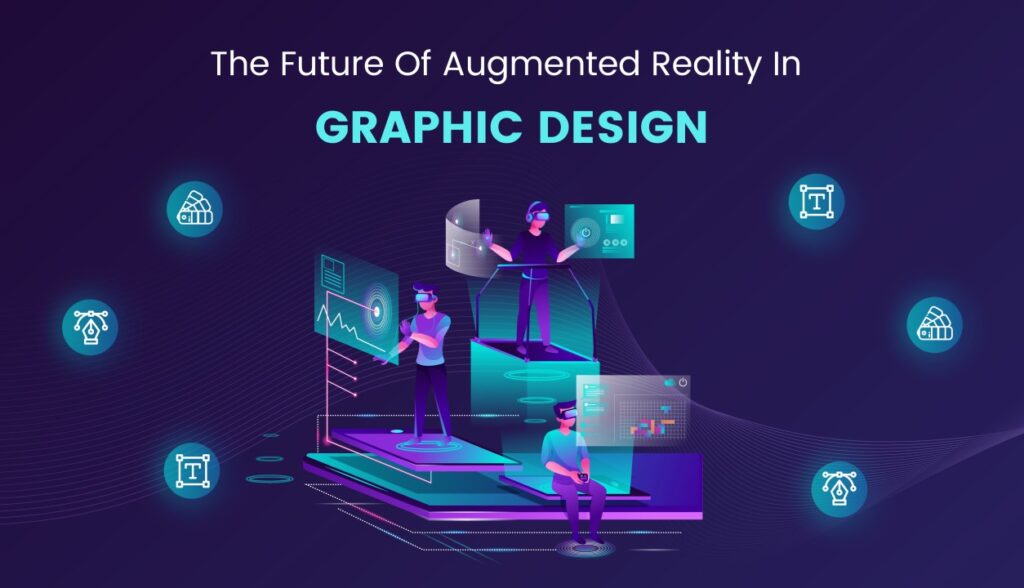
How is Augmented Reality Used in Graphic Design?

Augmented reality is changing the face of graphic design, merging digital and physical experiences in ways that were never thought possible. Designers now use AR to create immersive, interactive visuals that engage audiences and redefine brand experiences. Whether in advertising, product packaging, or user interfaces, AR is transforming how we interact with digital content.   Improving Branding and Marketing AR allows brands to create dynamic marketing campaigns that captivate audiences. Companies use AR-powered graphics in advertisements, brochures, and posters, where users can scan a QR code to unlock interactive 3D visuals, videos, or animations. This approach makes static materials come to life, offering consumers an engaging experience that leaves a lasting impression.   Interactive Product Packaging Brands are now using AR to make product packaging more interactive. By scanning a package with a smartphone, users can access animations, product information, or even a virtual unboxing experience. This enhances customer engagement and provides valuable information in an innovative and entertaining way.   Revolutionizing UI/UX Design Graphic designers working in UI/UX development use AR to create more immersive and intuitive user interfaces. AR-driven mobile apps and websites now feature interactive elements, allowing users to visualize products in real-world environments before making a purchase. This has become particularly popular in industries like fashion, home décor, and retail, where customers can try out products virtually before buying.   Transforming Print Media Traditional print medium is being restrategized with AR integration. There are now AR-based infographics along with videos and animations in magazines and newspapers, available to scan to access certain pieces of extended content. This brings life to static print, making the reading experience more engaging and multi-dimensional.   Immersive Graphic Design for events and exhibitions Events, exhibitions, and trade shows are utilizing AR-powered graphics to create interactive booths and displays. Visitors can engage with digital overlays, 3D models, or real-time data visualizations using their smartphones or AR glasses. This elevates the overall experience, making it more engaging and memorable.   Future of AR in Graphic Design As AR technology continues to advance, graphic designers will have even more tools at their disposal to create stunning, interactive content. From AR-infused social media filters to virtual art installations, the possibilities are endless. Designers who embrace AR will not only enhance user engagement but also redefine the way audiences interact with digital media.   Conclusion Augmented reality is reshaping the graphic design landscape by adding interactivity, depth, and engagement to visual content. Brands, marketers, and designers are leveraging AR to create compelling experiences that bridge the gap between the digital and physical worlds. As this technology continues to evolve, its impact on graphic design will only grow, opening doors to even more creative and immersive possibilities.

How is Augmented Reality Used in Graphic Design? Read More »

Scroll to Top