Websites

10 Essential CSS Properties for Developers

10 Essential CSS Properties for All Developers CSS (Cascading Style Sheets) is the foundation of web design, assisting you in styling and laying out your web pages. Knowing a few key CSS properties can make your work easier and more efficient. Below are 10 essential CSS properties that every developer should know: 1. Color The `color` property defines the color of text in an element. It’s a basic property for readability and aesthetics. You can define colors with named colors, hex, RGB, or HSL. css p { color: #333; } 2. Background-color This attribute sets the color of an element’s background. It’s vital in design as it provides contrast and emphasis. css div { background-color: #f0f0f0; } 3. Font-family `font-family` property determines your text’s font type. Making use of web-safe fonts or using custom fonts makes your page more readable and user-friendly. css body { font-family: Arial, sans-serif; } 4. Margin Margins add space around elements, beyond their borders. They assist with spacing and layout. css .container { margin: 20px; } 5. Padding Padding adds space inside an element, between the content and its border. It’s essential for creating visually appealing and legible content. css .box { padding: 10px; } 6. Border The `border` property specifies the style, width, and color of an element’s border. It can be used for creating bordered sections and definition. css .card { border: 1px solid #ddd; } 7. Display The `display` property manages the layout behavior of elements. `block`, `inline`, and `flex` are the most frequently used values. css .nav { display: flex; } 8. Flexbox (display: flex) Flexbox is a layout system that enables you to quickly align items as rows or columns. It’s essential for responsive design. css .container { display: flex; justify-content: space-between; 9. Position The `position` property specifies the way an element is placed on the page. Values such as `absolute`, `relative`, and `fixed` enable accurate placement. css .modal { position: fixed; top: 50%; left: 50%; } 10. Width/Height These properties define the size of an element. They’re essential for controlling layout dimensions. css img { width: 100%; height: auto; } Master these 10 CSS properties, and you’ll be well on your way to building beautifully styled websites with ease.

10 Essential CSS Properties for Developers Read More »

10 Useful Free Plugins in WordPress Elementor

10 Useful Free Plugins in WordPress Elementor Elementor is one of the most popular page builders for WordPress, offering a drag-and-drop interface that makes website design a breeze. To enhance its functionality, there are numerous free plugins available. Here are 10 useful free plugins that can take your Elementor experience to the next level: These plugins can significantly enhance your Elementor experience, offering more design flexibility and functionality without breaking the bank. Give them a try and see how they can transform your WordPress website!

10 Useful Free Plugins in WordPress Elementor Read More »

10 Useful HTML Tags Every Web Developer Should Know

10 Useful HTML Tags Every Web Developer Should Know HTML (Hypertext Markup Language) is the backbone of every website. It provides the structure and content of web pages, making it essential for web developers to master. Whether you’re a beginner or an experienced developer, knowing the most useful HTML tags can significantly improve your coding efficiency and the quality of your websites. In this blog, we’ll explore 10 useful HTML tags that are essential for creating well-structured, SEO-friendly, and accessible web pages. 1. <title> Tag The <title> tag is one of the most important tags for SEO. It defines the title of the webpage, which appears in the browser tab and search engine results. A well-optimized title tag can improve your website’s click-through rate (CTR) and search engine ranking. Example: <title>10 Useful HTML Tags for Web Developers | YourWebsite.com</title> SEO Tip: Include relevant keywords in the title tag and keep it under 60 characters to ensure it displays properly in search results. 2. <meta> Tag The <meta> tag is used to provide metadata about the webpage, such as descriptions and keywords. The most commonly used meta tags are description and viewport. Example: <meta name=”description” content=”Discover 10 useful HTML tags every web developer should know. Learn how to use these tags to create SEO-friendly and accessible websites.”> <meta name=”viewport” content=”width=device-width, initial-scale=1.0″> SEO Tip: Write a compelling meta description (under 160 characters) to encourage users to click on your link in search results. 3. <header> Tag The <header> tag defines the header section of a webpage or a section within the page. It typically contains the website logo, navigation menu, and introductory content. Example: <header> <h1>Welcome to My Website</h1> <nav> <a href=”/”>Home</a> <a href=”/about”>About</a> </nav> </header> SEO Tip: Use the <header> tag to structure your content logically, which helps search engines understand your page layout. 4. <main> Tag The <main> tag represents the main content of a webpage. It should contain unique content that is directly related to the page’s purpose. Example: <main> <h2>10 Useful HTML Tags</h2> <p>Here are 10 HTML tags that every web developer should know…</p> </main> SEO Tip: Avoid placing repetitive content (like navigation links) inside the <main> tag to improve SEO. 5. <article> Tag The <article> tag is used to define self-contained content that can be distributed independently, such as blog posts, news articles, or forum posts. Example: <article> <h2>How to Use the Article Tag</h2> <p>The article tag is perfect for blog posts and news articles…</p> </article> SEO Tip: Use the <article> tag to structure blog posts or news content, making it easier for search engines to identify and index your content. 6. <section> Tag The <section> tag is used to group related content together. It helps organize content into meaningful sections, improving readability and accessibility. Example: <section> <h2>HTML Tags for SEO</h2> <p>Learn how to use HTML tags to improve your website’s SEO…</p> </section> SEO Tip: Use headings (<h1> to <h6>) within sections to create a clear content hierarchy. 7. <img> Tag The <img> tag is used to embed images in a webpage. It’s essential to use the alt attribute for accessibility and SEO. Example: <img src=”html-tags.jpg” alt=”10 Useful HTML Tags for Web Developers”> SEO Tip: Always include descriptive alt text for images to improve accessibility and help search engines understand the content of the image. 8. <a> Tag The <a> tag is used to create hyperlinks, which are crucial for navigation and SEO. Example: <a href=”https://example.com/html-tags” title=”Learn HTML Tags”>Learn More About HTML Tags</a> SEO Tip: Use descriptive anchor text and include the title attribute for better user experience and SEO. 9. <footer> Tag The <footer> tag defines the footer section of a webpage, typically containing copyright information, contact details, and social media links. Example: <footer> <p>&copy; 2023 YourWebsite.com. All rights reserved.</p> </footer> SEO Tip: Use the <footer> tag to include important links and information, but avoid keyword stuffing. 10. <meta charset=”UTF-8″> Tag The <meta charset=”UTF-8″> tag specifies the character encoding for the webpage. It ensures that special characters and symbols are displayed correctly. Example: <meta charset=”UTF-8″> SEO Tip: Always include this tag in the <head> section to avoid rendering issues and improve website accessibility. Conclusion Mastering these 10 useful HTML tags will not only help you create well-structured and accessible websites but also improve your website’s SEO performance. By using tags like <title>, <meta>, <header>, and <img> correctly, you can enhance your website’s visibility in search engine results and provide a better user experience. Start implementing these tags in your projects today and take your web development skills to the next level!

10 Useful HTML Tags Every Web Developer Should Know Read More »

Advanced Custom Fields (ACF)

Advanced Custom Fields is one of the top WordPress plugins in its niche of custom field managers, offering flexibility in how people use WordPress with enhanced extension capability for developers and designers to develop or build various kinds of site and sites related to each niche, adding user experience. Description Purpose: Add custom fields to posts, pages, custom post types, users, taxonomy terms, media and options pages to create structured content. User-friendly Interface: Handle fields without coding in an intuitive admin UI. Developer-friendly: Functionality is available in PHP (get_field(), the_field()) and hooks for integration in themes and plugins. Key Features Custom Field Types – includes text, image, file upload, number, WYSIWYG editor, repeater, relationship, true/false and many more. Conditional Logic – Make fields appear or disappear based on certain criteria. Repeater & Flexible Content Fields (PRO) – Design dynamic, structured content layouts Options Page (PRO) – Store global settings for use sitewide. Custom Post Type & Taxonomy Support – Assign fields to custom content types with ease. REST API & GraphQL Support – Retrieve ACF fields programmatically for headless WordPress setups. Use Cases Why Use ACF? ACF has both Free and Pro versions; the Pro version is advanced with repeaters, flexible content, and options page.

Advanced Custom Fields (ACF) Read More »

What is a CMS?

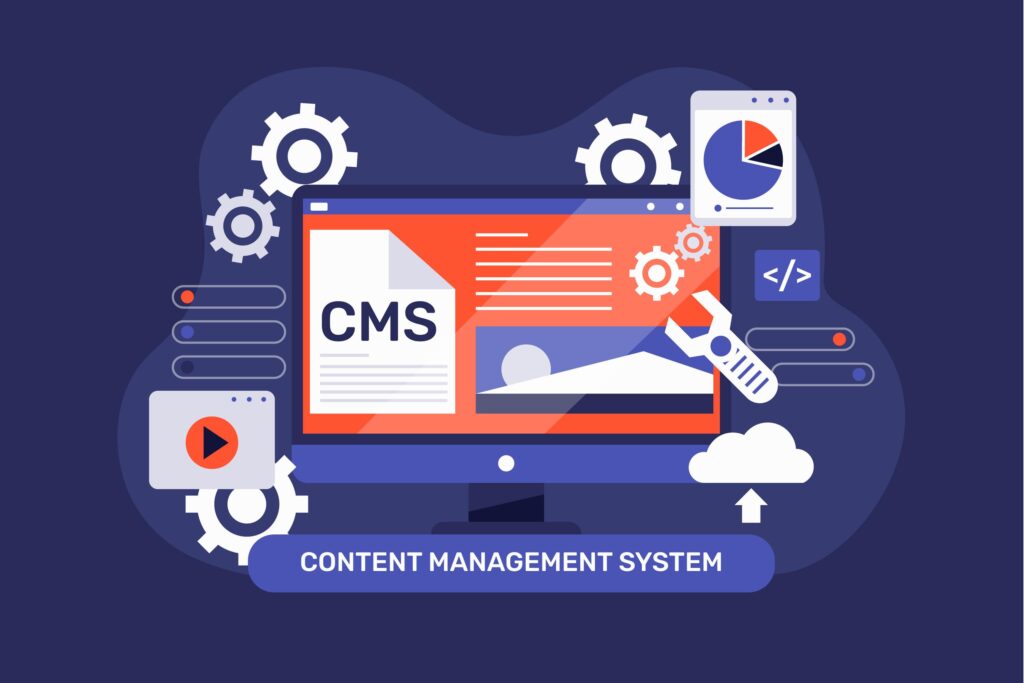
What is a CMS? A Content Management System, or CMS, is an application that lets the user build, edit, manage, and publish digital content without requiring significant technical knowledge. It helps people and businesses create and maintain websites quickly and efficiently by streamlining updates to content, media uploads, and changes to design. A CMS typically consists of two parts: Content Management Application (CMA) – an interface for none technical users used to create or modify content based on their request without writing one line of code. Content Delivery Application (CDA) The backend infrastructure: compiles delivers content to be presented on front-end website back-end so what the visitor’s see is to be published there. How do CMS work A CMS acts as a middleman between the user and the backend of the website. Instead of writing HTML, CSS, and JavaScript files directly, users can upload text, images, videos, and more through the CMS interface. The CMS stores all this data in a structured database and dynamically builds it when someone accesses the website. Here’s a simplified workflow of how a CMS works: The user logs into the CMS dashboard. Content is composed or edited by a visual editor or text-based editor. Multimedia files such as images and videos are uploaded and embedded within the content. The user publishes the content that gets stored within the CMS database. The CMS fetches and renders the content dynamically when a visitor accesses the site. Advantages of CMS A CMS provides many benefits over traditional methods of website development and management. Some of these advantages include: 1. Ease of use CMS programs have user-friendly interfaces, creating content and administrating without demanding any coding capabilities. 2. Flexible customization Most CMS providers offer customizable template and theme functionality, enabling any business to easily create a look and feel aligned with its overall brand identity and personality. 3. Collaboration and multi-user capability A good CMS enables simultaneous collaboration by any number of registered users. Users can include various roles, from writers to designers and editors; all of which can collaborate quickly and efficiently as needed. 4. SEO Friendly Most of them have built-in SEO tools such as editing metadata, structuring URL, and generating a sitemap to ensure more visibility for the website. 5. Content Scheduling Users can schedule content for posting at specific times, thus making marketing campaigns and editorial calendars easier to manage. 6. Security & Maintenance Most of the CMS systems will receive periodic security updates to fend off cyberattacks, and their plugins and extensions can enhance their security features. Types of CMS There are a variety of types of CMS that cater to various needs. Main types include: 1. Traditional CMS A traditional CMS, also called a coupled CMS, combines content management and the front-end presentation. Some popular examples are WordPress, Joomla, and Drupal. 2. Headless CMS Separation of Content Management from Presentation: Developers can use API to deliver the content in one or more platforms across websites, mobile applications, and IoT. Examples include Contentful, Strapi, and Prismic. 3. Decoupled CMS Decoupling separates the backend and the frontend, but it still offers a front-end delivery mechanism, unlike the headless CMS. Examples include Sitecore and Kentico. 4. E-commerce CMS These are CMS platforms developed specifically for e-commerce stores with features such as product management, payment processing, and order tracking. Some examples include Shopify, Magento, and WooCommerce. Common CMS Platforms There are a number of CMS platforms for businesses and content management. Here are some of the most common ones: 1. WordPress The most widely used CMS, which powers over 40% of websites in the world Very user-friendly and has a very large library of plugins and themes Ideal for blogs, business websites, and e-commerce 2. Joomla More flexible than WordPress but requires some technical knowledge Ideal for complex websites and online applications Offers multilingual support out of the box 3. Drupal Highly customizable and secure Best for large-scale and enterprise-level websites Requires more technical expertise compared to WordPress and Joomla 4. Shopify Dedicated e-commerce CMS Hosted solution with built-in security and payment integrations Best for small to medium-sized online stores 5. Magento Powerful and scalable e-commerce CMS Ideal for large businesses with extensive product catalogs Requires technical knowledge for customization 6. Wix Drag-and-drop website builder with CMS functionality Ideal for small businesses and personal websites Limited flexibility compared to WordPress Choosing the Right CMS Selecting the right CMS depends on your needs, technical expertise, and business goals. Consider the following factors: Ease of Use – If you’re a beginner, opt for a CMS with a simple interface like WordPress or Wix. Customization – If you need extensive customization, platforms like Drupal or Joomla may be better suited. Scalability – If you plan to grow your website, choose a CMS that can handle increased traffic and content, such as WordPress or Magento. Security – Consider security features and updates, especially for e-commerce and enterprise websites. Conclusion A Content Management System is an effective tool in simplifying website creation, management, and publishing. For anyone who blogs, owns a business, or develops, choosing the right CMS would make a great difference in website success. So many CMS choices are available. Knowing your requirements and looking around at various options will lead you to the perfect solution for you. By leveraging a CMS, you can focus on what truly matters – creating valuable content and growing your online presence.  

What is a CMS? Read More »

Why Choose WordPress for eCommerce?

In the fast-paced world of online shopping, choosing the right platform for your eCommerce business is crucial. With numerous options available, WordPress stands out as one of the most versatile and user-friendly solutions. Here’s why WordPress should be your go-to choice for building an eCommerce store: 1. WooCommerce Integration One of the biggest reasons to choose WordPress for eCommerce is WooCommerce. This powerful plugin transforms a WordPress website into a fully functional online store. It’s free, flexible, and offers extensive customization options, making it perfect for businesses of all sizes. 2. Ease of Use WordPress is known for its intuitive interface. Even those with minimal technical knowledge can easily set up and manage an online store. The user-friendly dashboard allows for seamless product management, order tracking, and customer interactions. 3. Extensive Customization Options With thousands of themes and plugins available, WordPress allows you to tailor your eCommerce store to match your brand identity. Whether you need advanced filtering, payment gateways, or a unique checkout process, WordPress has a solution for you. 4. SEO-Friendly Search engine optimization (SEO) is critical for driving traffic to your store. WordPress, combined with plugins like Yoast SEO, provides robust tools to optimize product pages, blog content, and overall site structure, ensuring better rankings on search engines. 5. Cost-Effective Solution Unlike many proprietary eCommerce platforms, WordPress is open-source and free to use. While you may need to invest in premium themes, plugins, and hosting, it still remains a more affordable option compared to platforms with high monthly fees. 6. Scalability & Performance Whether you’re starting small or planning to expand, WordPress grows with you. It supports everything from small boutiques to large-scale enterprises, ensuring that your website can handle increased traffic and sales volume without compromising performance. 7. Strong Community & Support With millions of users worldwide, WordPress has a vast support community. Whether you need help with troubleshooting, development, or enhancements, you can find extensive resources, forums, and expert support to keep your store running smoothly. 8. Security & Reliability WordPress continually updates its core software to enhance security. Additionally, there are numerous security plugins available to protect your store from cyber threats, ensuring customer data remains safe. Conclusion If you’re looking for a flexible, affordable, and highly customizable platform for your eCommerce store, WordPress is an excellent choice. With WooCommerce at its core, extensive customization capabilities, and a robust support system, it offers everything you need to build and grow a successful online business.

Why Choose WordPress for eCommerce? Read More »

Why Choose WordPress for Your First Website?

Why Choose WordPress for Your First Website? So, you want to create an online presence. But do you know how to begin the process? Building a website is scary enough for those who don’t do it every day. This is where WordPress has leveled the playing field; it’s a democratization of website creation. In this article, we will have fun showing how WordPress simplifies the process of building your first website. What is WordPress? WordPress is a free, open-source content management system (CMS) that allows users to create and manage digital content. With more than 60 million websites built on WordPress, it is the most popular CMS in the world. WordPress offers a user-friendly interface, flexibility, and scalability, making it an ideal choice for beginners and experienced developers alike. *Why Choose WordPress? Ease of Use: WordPress has a gentle learning curve, and you can easily get the hang of the basics. Its intuitive interface makes it easy to navigate and customize your website. Flexibility: With thousands of free and paid themes, plugins, and widgets, WordPress offers unparalleled flexibility. You can easily customize your website’s design, functionality, and features to suit your needs. Scalability: WordPress is built to scale with your website. As your online presence grows, WordPress can handle increased traffic, content, and features without compromising performance. Community Support: WordPress has a massive community of users, developers, and experts. You can find extensive documentation, tutorials, and forums to help you overcome any challenges. Building Your First Website with WordPress Domain and Web Host: You need to register a domain name and select a reliable web host that offers WordPress installation. Popular options include Hostinger, Blue Host, and HostGator. Installation of WordPress: Most web hosts offer 1-click WordPress installation. Otherwise, you can manually install WordPress using the Famous 5-Minute Install process. Theme Selection: Go through the WordPress theme directory or third-party marketplaces such as ThemeForest. Choose a theme that will represent your brand and the purpose of your website. Customize Your Website: Customize your website layout, colors, and typography by using the WordPress Customizer. Upload your logo, header images, and content to make your website stand out. Add Functionality with Plugins: Explore the WordPress Plugin Directory or premium plugin marketplaces. Install plugins to enhance your website’s functionality, such as contact forms, social sharing, and SEO optimization. Create High-Quality Content: Develop a content strategy that showcases your brand’s voice, tone, and expertise. Use WordPress’s built-in editor or page builders like Elementor to craft engaging content. Launch and Promote Your Website: Once your website is ready, launch it and share it with the world. Promote your website on social media, forums, and online communities to attract visitors. Tips and Tricks for WordPress Beginners Start with a simple theme: Avoid overly complex themes that may overwhelm you. Use page builders: Page builders like Elementor, Beaver Builder, or Divi Builder simplify the content creation process. WordPress Tutorials: Extensive tutorials and guides available at link not available here, YouTube, and online courses. Join WordPress communities: Get connected through online forums, social media groups, and local meetups of other WordPress users. Maintain an updated website: Regular update your WordPress core, themes, and plugins to secure and performance issues. Building your first WordPress website is one of the exciting ventures you’ll ever have in your life. WordPress makes creating a professional-looking website easy to do, owing to its friendly interface, flexibility, and scalability. You can follow the instructions outlined in this article to begin building a great online presence for yourself. So, stay updated, keep learning, and most importantly, enjoy the process!

Why Choose WordPress for Your First Website? Read More »

Scroll to Top