
Video Editing

How to Edit Corporate Videos for a Professional Look

Editing Corporate Videos for a Professional Appearance Corporate videos are a crucial part of brand promotion, internal communication, and client outreach. A professionally edited corporate video can build credibility and professionalism, leaving a lasting impression on your viewers. Follow these step-by-step instructions to attain a polished and professional appearance when editing corporate videos. ## 1. Plan Before Editing ### Why It Matters: A good plan ensures consistency and alignment with brand objectives. ### How to Do It: – Check the script and storyboard beforehand. – Know the target audience and desired message. – Cut all footage, audio, and graphics to facilitate editing. ## 2. Utilize High-Quality Footage ### Why It Matters: Low video quality will present your brand in a poor light. ### How to Do It: – Ensure that footage is captured in high resolution (1080p or 4K). – Stabilize shaky footage with software tools. – Employ proper lighting and framing to ensure visual clarity. ## 3. Ensure a Consistent Brand Identity ### Why It Matters: Brand consistency increases recognition and professionalism. ### How to Do It: – Adhere to brand colors, fonts, and logos. – Utilize pre-set templates for text overlays and animations. – Implement consistent transitions and effects throughout the video. ## 4. Improve Audio Quality ### Why It Matters: Professional, clear audio facilitates effective communication and interaction. ### How to Do It: – Utilize a good quality microphone for voiceovers and interviews. – Remove background noise and balance audio levels for clarity. – Add background music that is subtle and complements the message. ## 5. Improve Pacing and Flow ### Why It Matters: A good video maintains the attention of viewers and conveys the message clearly. ### How to Do It: – Trim unnecessary footage to maintain the video’s brevity. – Apply smooth transitions to ensure a continuous flow. – Synchronize edits with the rhythm of voiceover or music. ## 6. Employ Professional Text and Graphics ### Why It Matters: Well-positioned text and graphics support major messages. ### How to Do It: – Apply clean, readable fonts with suitable sizing. – Position text within safe margins. – Emphasize key points using lower-thirds and callouts. ## 7. Export in the Correct Format ### Why It Matters: Correct format guarantees cross-platform compatibility. ### How to Do It: – Export at high resolution (MP4, MOV) for readability. – Optimize file size for web and social media sharing. – Include subtitles and captions for accessibility. ## Conclusion Professional editing of corporate videos demands precision and consistency with the brand identity. By adhering to these steps, you can produce quality videos that reflect professionalism, capture your audience, and enhance your brand’s reputation. Continue to hone your skills and try new things to create even better outcomes!  

How to Edit Corporate Videos for a Professional Look Read More »
Common Video Editing Errors and How to Avoid Them

Common Video Editing Errors and How to Avoid Them Video editing is a very important part of creating compelling and professional-grade content. Despite the expertise of editors, mistakes can still be made that influence the final product. As a beginner or professional editor, it is important to understand these common errors and how to avoid them in order to take your video production to the next level. ## 1. Overlooking Proper Storytelling Structure ### Error: Most editors are concerned with only glitzy transitions and effects and pay no attention to the flow of the story, resulting in disorienting or boring content. ### How to Avoid It: – Develop your video’s script prior to editing. – Apply a linear structure with a well-defined start, middle, and end. – Use a rational sequence to hold the audience’s attention. ## 2. Too Many Transitions and Effects ### Error: Overreliance on transitions, animations, or effects can make a video appear amateurish and distracting. ### How to Avoid It: – Apply simple fades or cuts for seamless transitions. – Remain with minimal and meaningful effects that support the content. – Do not use unnecessary movement or gimmicky transitions except when they support the story. ## 3. Poor Audio Quality ### Mistake: Overlooking background noise, variable audio levels, or applying poor-quality audio will destroy the viewing experience. ### How to Avoid It: – Record using high-quality microphones. – Normalize audio levels for consistency. – Cut background noise and apply suitable sound effects or music to the video. ## 4. Unstable Color Grading ### Error: Unbalanced or extreme color grading may result in a video that does not appear balanced and professional. ### How to Avoid It: – Apply even color correction to all the clips. – Utilize color grading to create the proper mood but keep it subtle. – Utilize color-matching tools for maintaining visual balance. ## 5. Poor Timing and Pacing ### Error: Dragging scenes out too long or cutting too quickly can make videos seem dull or frantic. ### How to Avoid It: – Make the video interesting by having a good rhythm. – Strategically use cuts that complement the energy and message of the video. – Review the video several times to make sure the pacing is smooth. ## 6. Forgetting to Place Text and Graphics ### Mistake: Positioning text, subtitles, or graphics near the edges or in an illegible font may impact readability. ### How to Avoid It: – Utilize legible fonts and suitable text sizes. – Maintain text placement in safe zones. – Keep text and graphics harmonious with the visuals without dominating them. ## 7. Omitting Optimization for Multiple Platforms ### Error: Video editing without regard to platform requirements may result in suboptimal playback or trimmed visuals. ### How to Prevent It: – Adapt resolutions and aspect ratios according to platform demands (e.g., 16:9 for YouTube, 9:16 for Reel). – Render videos in high-quality formats for various devices. – Preview videos on several screens prior to publication. ## Conclusion Steering clear of these typical video editing errors can greatly improve the quality of your videos. By prioritizing storytelling, audio clarity, color consistency, pacing, and platform optimization, you can produce professional and engaging content. Practice regularly, keep yourself informed about new techniques, and always check your work before publishing. Happy editing!  

Common Video Editing Errors and How to Avoid Them Read More »

Canva Video Creation: An Overview

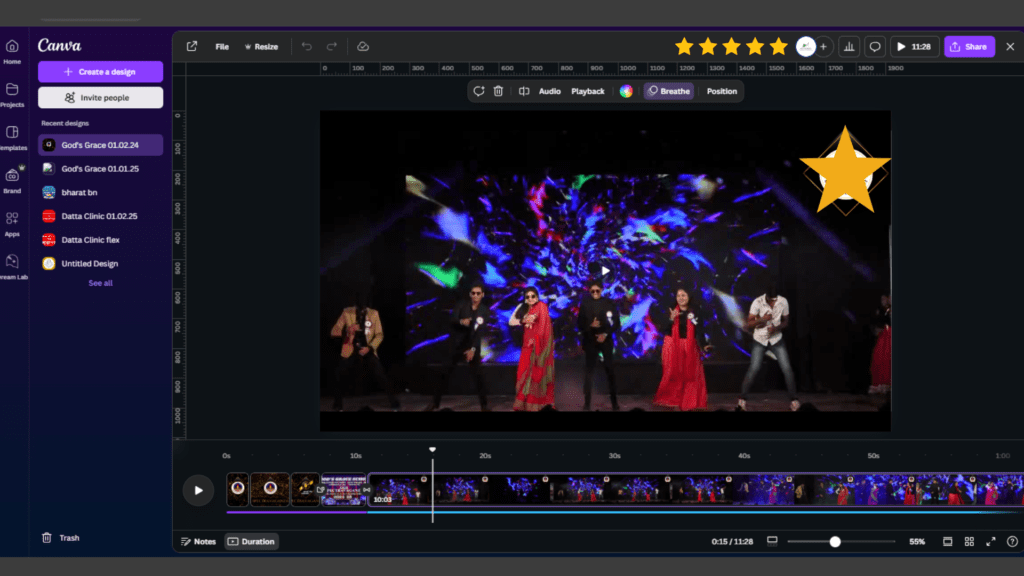
From templates, a plethora of premium features, and a great sound-engineering kit, Canva definitely offers something engaging for everyone. In this tutorial, you will find easy-to-follow steps to learn how to edit videos like a pro. Why Choose Canva Video Editing? Easiness: Drag-and-drop is fantastically easy. Templates: A dumping ground of high-quality templates. Affordability: No plan or premium plan. Collaboration: Real-time team collaboration. Browser-based: No downloads required. Editing Videos in Canva: Step-by-Step Process Sign Up or Log In: Time to create an account if you do not have one yet. Already have an account? You must log in. Choose a Template: On getting to the video section, select a template you want to work on. Upload Media: Begin dragging and dropping or inserting existing photo and video content into their proper slots. Steps to Edit the Video: Trimming and Splitting: Non-destructive editing with numerous layers. Adding Graphical Text and Transitions: Here we can expand the textual situation options and clip transitions in other video editing sets. Background Music and Voice Recording: Music libraries and a microphone can be fairly utilized in voiceovers. Customizing and Preview: You are editing the assets used in the project like changing colors, fonts, and effects. Keep previewing your approve edit till you get the desired effect on the spot. Exporting: Download or share the video in whatever format you want. Tips for a Wonderful Video Production Thematic Consistency: Will also reinforce feeling by supporting main themes like colors, fonts, and image styles. Go Short for Social Engagement: 15–90 seconds long is the sweetest spot. Anything beyond that should probably be handled a little differently. Well-Specced Media for a Good End: Enthusiasm may vary, though this isn’t one to skip. Subtitles for More Engagement: 70% more of your viewers have a wider retention if you lack sound. Animations: Spice up the entire gambling session with pull-off animations, bruh! Who Will Benefit from It? Small Business Owners: Run advertisements, develop how-to content Content Creators: Make videos for social media platforms Educators: Design engaging lessons and presentations Event Planners: Make highlight reels and invitations Conclusion Canva’s video editing tools will yield quick results in creating high-quality videos. Simplicity, a broad resource library, and collaboration elements make it a must try for those looking to create quality, professional videos with no hassle. Begin your Canva journey today!

Canva Video Creation: An Overview Read More »

Scroll to Top